For Amicus Prime Owners:
- Save these drills to your device via the following steps:
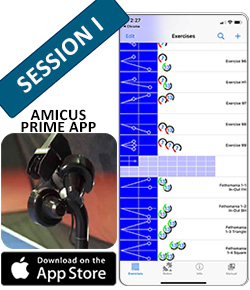
- Click the Drill image below to download the file to your tablet, cell phone or other device that has the Amicus app on it.
- Open that file and a window will appear in the Amicus app to confirm you want to import those drills. Tap Import to add the drills to the Exercise List.
- You can then play those drills just like any other drill in the Exercise List.
- Tip – After importing the drills from a Fethomania Session, tap on the drill description to reveal Stefan’s technique pointers for that drill!
For owners of models other than Prime::
- The Google Sheets image below takes you to a spreadsheet that gives the settings for each drill. While these won’t be the exact settings for the Control Panel on your robot, they will give you an idea of where to start, and you’ll need to adjust from there. At the bottom, we’ve included the ranges and defaults for the setting on a Prime so you can compare these to the ranges and defaults on your own robot. At the bottom, we’ve included the ranges and defaults for the setting on a Prime so you can compare these to the ranges and defaults on your own robot. In general, default settings should give you a similar ball regardless of what model you have. If a drill has a change of speed, spin, or trajectory, you will be unable to replicate that drill on a Basic or Start model.
For Amicus Prime Owners:
- Save these drills to your device via the following steps:
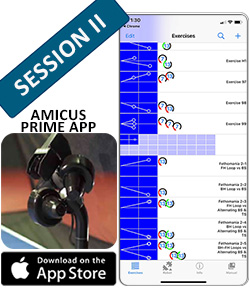
- Click the Drill image below to download the file to your tablet, cell phone or other device that has the Amicus app on it.
- Open that file and a window will appear in the Amicus app to confirm you want to import those drills. Tap Import to add the drills to the Exercise List.
- You can then play those drills just like any other drill in the Exercise List.
- Tip – After importing the drills from a Fethomania Session, tap on the drill description to reveal Stefan’s technique pointers for that drill!
For owners of models other than Prime:
- The Google Sheets image takes you to a spreadsheet that gives the settings for each drill. While these won’t be the exact settings for the Control Panel on your robot, they will give you an idea of where to start, and you’ll need to adjust from there. At the bottom, we’ve included the ranges and defaults for the setting on a Prime so you can compare these to the ranges and defaults on your own robot. At the bottom, we’ve included the ranges and defaults for the setting on a Prime so you can compare these to the ranges and defaults on your own robot. In general, default settings should give you a similar ball regardless of what model you have. If a drill has a change of speed, spin, or trajectory, you will be unable to replicate that drill on a Basic or Start model.
For Amicus Prime Owners:
- Save these drills to your device via the following steps:
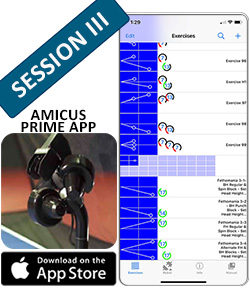
- Click the Drill image below to download the file to your tablet, cell phone or other device that has the Amicus app on it.
- Open that file and a window will appear in the Amicus app to confirm you want to import those drills. Tap Import to add the drills to the Exercise List.
- You can then play those drills just like any other drill in the Exercise List.
- Tip – After importing the drills from a Fethomania Session, tap on the drill description to reveal Stefan’s technique pointers for that drill!
For owners of models other than Prime:
- The Google Sheets image takes you to a spreadsheet that gives the settings for each drill. While these won’t be the exact settings for the Control Panel on your robot, they will give you an idea of where to start, and you’ll need to adjust from there. At the bottom, we’ve included the ranges and defaults for the setting on a Prime so you can compare these to the ranges and defaults on your own robot. At the bottom, we’ve included the ranges and defaults for the setting on a Prime so you can compare these to the ranges and defaults on your own robot. In general, default settings should give you a similar ball regardless of what model you have. If a drill has a change of speed, spin, or trajectory, you will be unable to replicate that drill on a Basic or Start model.
For Amicus Prime Owners:
- Save these drills to your device via the following steps:
- Click the Drill image below to download the file to your tablet, cell phone or other device that has the Amicus app on it.
- Open that file and a window will appear in the Amicus app to confirm you want to import those drills. Tap Import to add the drills to the Exercise List.
- You can then play those drills just like any other drill in the Exercise List.
- Tip – After importing the drills from a Fethomania Session, tap on the drill description to reveal Stefan’s technique pointers for that drill!
For owners of models other than Prime:
- The Google Sheets image takes you to a spreadsheet that gives the settings for each drill. While these won’t be the exact settings for the Control Panel on your robot, they will give you an idea of where to start, and you’ll need to adjust from there. At the bottom, we’ve included the ranges and defaults for the setting on a Prime so you can compare these to the ranges and defaults on your own robot. At the bottom, we’ve included the ranges and defaults for the setting on a Prime so you can compare these to the ranges and defaults on your own robot. In general, default settings should give you a similar ball regardless of what model you have. If a drill has a change of speed, spin, or trajectory, you will be unable to replicate that drill on a Basic or Start model.
For Amicus Prime Owners:
- Save these drills to your device via the following steps:
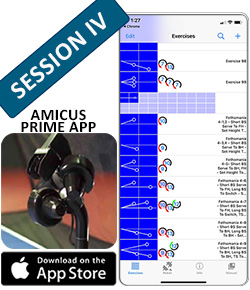
- Click the Drill image below to download the file to your tablet, cell phone or other device that has the Amicus app on it.
- Open that file and a window will appear in the Amicus app to confirm you want to import those drills. Tap Import to add the drills to the Exercise List.
- You can then play those drills just like any other drill in the Exercise List.
- Tip – After importing the drills from a Fethomania Session, tap on the drill description to reveal Stefan’s technique pointers for that drill!
For owners of models other than Prime:
- The Google Sheets image takes you to a spreadsheet that gives the settings for each drill. While these won’t be the exact settings for the Control Panel on your robot, they will give you an idea of where to start, and you’ll need to adjust from there. At the bottom, we’ve included the ranges and defaults for the setting on a Prime so you can compare these to the ranges and defaults on your own robot. At the bottom, we’ve included the ranges and defaults for the setting on a Prime so you can compare these to the ranges and defaults on your own robot. In general, default settings should give you a similar ball regardless of what model you have. If a drill has a change of speed, spin, or trajectory, you will be unable to replicate that drill on a Basic or Start model.
For Amicus Prime Owners:
- Save these drills to your device via the following steps:
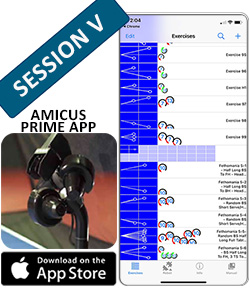
- Click the Drill image below to download the file to your tablet, cell phone or other device that has the Amicus app on it.
- Open that file and a window will appear in the Amicus app to confirm you want to import those drills. Tap Import to add the drills to the Exercise List.
- You can then play those drills just like any other drill in the Exercise List.
- Tip – After importing the drills from a Fethomania Session, tap on the drill description to reveal Stefan’s technique pointers for that drill!
For owners of models other than Prime:
- The Google Sheets image takes you to a spreadsheet that gives the settings for each drill. While these won’t be the exact settings for the Control Panel on your robot, they will give you an idea of where to start, and you’ll need to adjust from there. At the bottom, we’ve included the ranges and defaults for the setting on a Prime so you can compare these to the ranges and defaults on your own robot. At the bottom, we’ve included the ranges and defaults for the setting on a Prime so you can compare these to the ranges and defaults on your own robot. In general, default settings should give you a similar ball regardless of what model you have. If a drill has a change of speed, spin, or trajectory, you will be unable to replicate that drill on a Basic or Start model.
For Amicus Prime Owners:
- Save these drills to your device via the following steps:
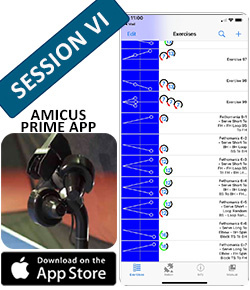
- Click the Drill image below to download the file to your tablet, cell phone or other device that has the Amicus app on it.
- Open that file and a window will appear in the Amicus app to confirm you want to import those drills. Tap Import to add the drills to the Exercise List.
- You can then play those drills just like any other drill in the Exercise List.
- Tip – After importing the drills from a Fethomania Session, tap on the drill description to reveal Stefan’s technique pointers for that drill!
For owners of models other than Prime:
- The Google Sheets image takes you to a spreadsheet that gives the settings for each drill. While these won’t be the exact settings for the Control Panel on your robot, they will give you an idea of where to start, and you’ll need to adjust from there. At the bottom, we’ve included the ranges and defaults for the setting on a Prime so you can compare these to the ranges and defaults on your own robot. At the bottom, we’ve included the ranges and defaults for the setting on a Prime so you can compare these to the ranges and defaults on your own robot. In general, default settings should give you a similar ball regardless of what model you have. If a drill has a change of speed, spin, or trajectory, you will be unable to replicate that drill on a Basic or Start model.
For Amicus Prime Owners:
- Save these drills to your device via the following steps:
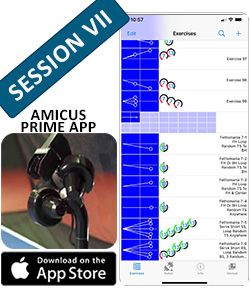
- Click the Drill image below to download the file to your tablet, cell phone or other device that has the Amicus app on it.
- Open that file and a window will appear in the Amicus app to confirm you want to import those drills. Tap Import to add the drills to the Exercise List.
- You can then play those drills just like any other drill in the Exercise List.
- Tip – After importing the drills from a Fethomania Session, tap on the drill description to reveal Stefan’s technique pointers for that drill!
For owners of models other than Prime:
- The Google Sheets image takes you to a spreadsheet that gives the settings for each drill. While these won’t be the exact settings for the Control Panel on your robot, they will give you an idea of where to start, and you’ll need to adjust from there. At the bottom, we’ve included the ranges and defaults for the setting on a Prime so you can compare these to the ranges and defaults on your own robot. At the bottom, we’ve included the ranges and defaults for the setting on a Prime so you can compare these to the ranges and defaults on your own robot. In general, default settings should give you a similar ball regardless of what model you have. If a drill has a change of speed, spin, or trajectory, you will be unable to replicate that drill on a Basic or Start model.
For Amicus Prime Owners:
- Save these drills to your device via the following steps:
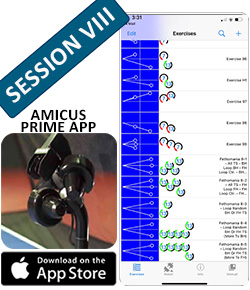
- Click the Drill image below to download the file to your tablet, cell phone or other device that has the Amicus app on it.
- Open that file and a window will appear in the Amicus app to confirm you want to import those drills. Tap Import to add the drills to the Exercise List.
- You can then play those drills just like any other drill in the Exercise List.
- Tip – After importing the drills from a Fethomania Session, tap on the drill description to reveal Stefan’s technique pointers for that drill!
For owners of models other than Prime:
- The Google Sheets image takes you to a spreadsheet that gives the settings for each drill. While these won’t be the exact settings for the Control Panel on your robot, they will give you an idea of where to start, and you’ll need to adjust from there. At the bottom, we’ve included the ranges and defaults for the setting on a Prime so you can compare these to the ranges and defaults on your own robot. At the bottom, we’ve included the ranges and defaults for the setting on a Prime so you can compare these to the ranges and defaults on your own robot. In general, default settings should give you a similar ball regardless of what model you have. If a drill has a change of speed, spin, or trajectory, you will be unable to replicate that drill on a Basic or Start model.
For Amicus Prime Owners:
- Save these drills to your device via the following steps:
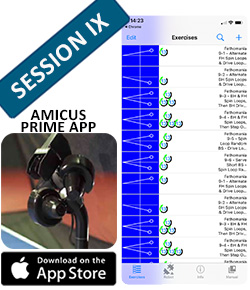
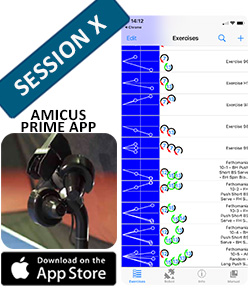
- Click the Drill image below to download the file to your tablet, cell phone or other device that has the Amicus app on it.
- Open that file and a window will appear in the Amicus app to confirm you want to import those drills. Tap Import to add the drills to the Exercise List.
- You can then play those drills just like any other drill in the Exercise List.
- Tip – After importing the drills from a Fethomania Session, tap on the drill description to reveal Stefan’s technique pointers for that drill!
For owners of models other than Prime:
- The Google Sheets image takes you to a spreadsheet that gives the settings for each drill. While these won’t be the exact settings for the Control Panel on your robot, they will give you an idea of where to start, and you’ll need to adjust from there. At the bottom, we’ve included the ranges and defaults for the setting on a Prime so you can compare these to the ranges and defaults on your own robot. At the bottom, we’ve included the ranges and defaults for the setting on a Prime so you can compare these to the ranges and defaults on your own robot. In general, default settings should give you a similar ball regardless of what model you have. If a drill has a change of speed, spin, or trajectory, you will be unable to replicate that drill on a Basic or Start model.